
Product documentation
Follow installation, administration, modelling, user and API guidance for the current documentation set.
Open the documentationResources
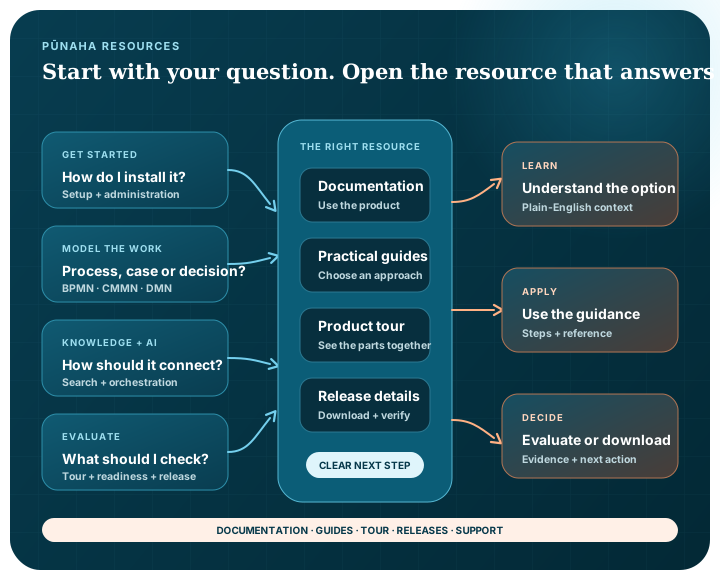
Use the product documentation when you are working in Pūnaha. Use the practical guides when you are choosing an approach, preparing an evaluation or explaining the work to someone else.
Get started
Follow installation, administration, modelling, user and API guidance for the current documentation set.
Open the documentationCheck the current production version, supported installers, registration information and verification links.
Review the current releasePrepare the environment, install Pūnaha and complete first-time setup.
Read the installation guideRegister an installation or ask for help with installation and product support.
Open Pūnaha SupportPractical guides
Understand repeatable routes, events, gateways, waits, human tasks and durable execution.
Read the BPMN guideUnderstand adaptive work, case information, planning, sentries and milestones.
Read the case management guideUnderstand decision tables, explicit rules and how decision results can support wider work.
Read the decision guideCompare the three models in plain English and see how they can work together.
Compare the modelsLearn how enterprise search finds useful information across connected organisational sources.
Read the enterprise search guideConnect governed organisational knowledge to useful AI-supported answers while keeping sources and access in view.
Read the knowledge management guideSee how knowledge, supported models, decisions and human work can be connected in a visible flow.
Read the AI orchestration guideEvaluate Pūnaha
Explore practical examples across knowledge, workflow and case management before arranging a demonstration.
Take the product tourInspect representative multi-step workflows with narrated stages and visible inputs and results.
Open the workflow showcasePrepare the knowledge, access, work, operating and evaluation questions for a bounded enterprise AI pilot.
Use the readiness checklistUnderstand the no-cost software licence, registration and annual renewal for Pūnaha 1.0.0.
Review pricing and licensingDownload the current production release from GitHub, or book a private demonstration around the work you want to explore.